
Thanks to a donation, I now have several old laptops running only Linux. Two have become my principal machines, and my Windows laptop is sitting very firmly in third position. I've even gone as far to put a Win 10 Virtual Machine (VM) on my Linux laptop using VirtualBox just in case I need something from Windows. So far, I have not.
I don't normally do requests but...
An old friend of mine [both a friend of mine for a long time, and who also happens, like me, to be old] has just got in touch asking for some pointers on Linux.
If you find the stuff below useful, let me know, and please let me know what needs adding.
What is a "distro"?
Distro is short for Distribution. It's a version or flavour of Linux. The good and bad news is that there are hundreds of different distributions to choose from. Some are more for people who are Linux-curious and are not sure if they want to leave Windows completely. Some have more of a Mac look and feel. Some are just basic and get the job done. Others are sleek, with a very nice graphical user interface (GUI).
There are many distros to choose from. If you want to get to know some popular distros, and get basic help in choosing, take a look here: https://www.linuxstart.com/which-linux-distro-to-choose/
My personal favourites are, in order of preference:
- Linux Lite: https://www.linuxliteos.com/
- Lubuntu: https://lubuntu.me/
- Xubuntu: https://xubuntu.org/
- Mint: https://www.linuxmint.com
- Ubuntu: https://ubuntu.com/
Getting the distribution's ISO files
Look for the downloads link or page, then download the ISO file (between 2GB and 6GB depending on the distribution you have chosen). You may be asked to choose a mirror site nearer where you live for faster downloads.
Here are some examples to go straight to the distribution download page:
- Linux Lite: https://www.linuxliteos.com/download.php
- Lubuntu: https://lubuntu.me/downloads/
- Xubuntu: https://xubuntu.org/download/
- Mint: https://www.linuxmint.com/download.php
- Ubuntu: https://ubuntu.com/download
Making the bootable USB stick
You'll need to put the ISO image you have chosen onto a bootable medium - like a USB stick.
Look for a utility to make a bootable medium. I've used and like the two below
- Rufus https://rufus.ie/en/ or
- Universal USB Installer https://pendrivelinux.com/universal-usb-installer-easy-as-1-2-3/
Here are some other (not tested) Bootable USB utilities:
Post-Install tweaks
Inevitably, there will be things you might want to do right after install. Here are some good pointers:
https://www.howtogeek.com/things-i-do-after-installing-linux/
- sudo apt update is an absolute must.
- Codecs, meh, depends what you want to be doing.
- Drivers, again, depends if you need some spurious hardware to run.
- Don't waste time removing "unneccessary" software unless your disk is low on space.
- Wine or Bottles - unless you really want to run a Windows app, and, why would you on a Linux machine??? then don't bother.
- If this machine is mono-user, then don't worry or spend too much time on users & groups either. Just use root [JOKE!!!]
- Backups - nah, again why would you need a backup? [possibly a joke but then again...]
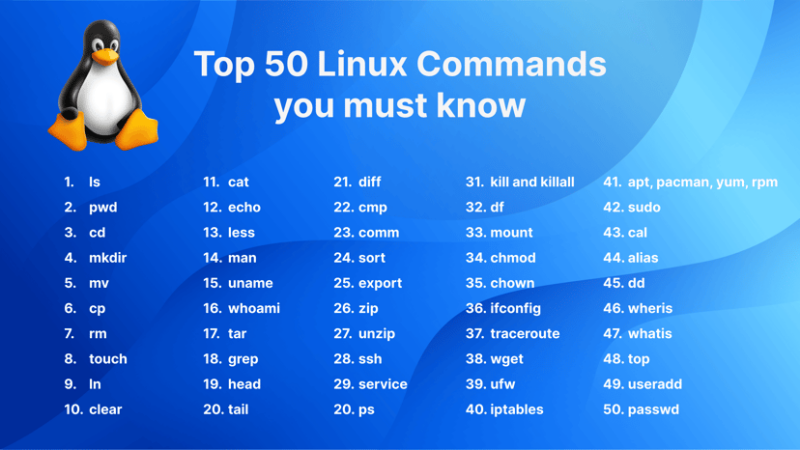
Command Line in a nutshell
For those of us who used computers when GUIs were not an option, Linux is great for Command Line.
Here are just a few to get you started:
https://www.digitalocean.com/community/tutorials/linux-commands
Documentation
Any old-skool people who still read documents, you'll love the command man.
More info here: https://www.howtogeek.com/663440/how-to-use-linuxs-man-command-hidden-secrets-and-basics/
Otherwise, please find below the main repos for the distros above:
- Lubuntu: OK so some joker has re-routed the official Lubuntu doc link to some dodgy site (very childish!), so here is another link to the Lubuntu manual: https://manual.lubuntu.me/stable/index.html
- Xubuntu: https://xubuntu.github.io/xubuntu-docs/
- Mint: https://www.linuxmint.com/documentation.php
- Ubuntu: funky way of determining your language, but hey... Here is the EN version https://help.ubuntu.com/stable/ubuntu-help/index.html.en
Microsoft, Office 365 & Teams on Linux
It is what it is... However hard you try, you may need or want to use some Microsoft products & services on your Linux machine. Here are some ways to do this.

A few months back, I went down the PWA route to reproduce an instance of my OneDrive, Outlook and other apps.
We all know the web versions of Office apps like Word, Excel are ... "sub-optimal" so for any heavy-lifting I would not recommend doing too much on Linux (and again, why would you?) but if you need to check mail, or upload/access files on OneDrive, then the PWA is not the worst route.
Anything more substantial, use Windows.
I lost a lot of time trying to get Wine to do anything useful, so I gave up. "Choose your battles" as they say somewhere...
When I get time, I might look deeper into using an Open Source Web App Wrapper.
However, Proton may very soon fill that gap (and other gaps too, like their Linux VPN client).

There is a Microsoft Teams client available for Linux. To learn more about it, read
- https://woshub.com/install-microsoft-teams-linux/
- https://thelinuxcode.com/install-microsoft-teams-debian-10/
You can also use Teams in a browser or as a PWA.

There is a Microsoft Edge client available for Linux. To learn more about it, read
Create Your Own Website With Webador